
RSS/Blog It!
Contents
RSS/Blog It!
RSS/Blog It! Help for Uploaders
Want to integrate a full, dedicated blog into your SBI! site? Click here to read the Infin It! help.
RSS/Blog It! creates an RSS feed for your site and, if you want one, creates a Tier 2 page (the Blog It! page) that displays snippets from all the latest pages that you've published.
Once you build or update a page, you have nothing to do. RSS/Blog It! automatically builds/updates your Blog It! page and your RSS feed (plus the What's New Box, if you're using one on your site) for you -- every time you modify your site!
If you're unfamiliar with RSS, or you're not sure how to best position your RSS feed and your Blog It! page, the RSS series in the TNT HQ will give you everything you need to use RSS/Blog It! effectively.
If you want to upload a Blog It! page to match your custom uploaded site design, click here for the help to do that.
Setting up RSS/Blog It! is as simple as answering a few questions and inserting a few "bloglets."
Blog It! Page
- Add a check if you want to have a Blog It! Tier 2 page.
- Select from the drop down menu the number of pages to list on your Blog It! page.
- Add a check if you want to add the date to each item.
- Add a check if you want to add a thumbnail image to each item.
- Add a check if you plan on using an uploaded Blog It! page.
- Click on the Preview Blog It! Page button whenever you want to see what your changes will look like.
This first section requires answers to some questions...
-
Do you want a Blog It! page?
-
How many web pages (or items) do you want your blog page to list?
-
Do you want to add the date to each item?
-
Do you want to add a Thumbnail image to each item?
-
Do you plan on using an uploaded page?
Question #1 -- Do you want a Blog It! page?
You can have an RSS feed for your site without offering a Blog It! Tier 2 page.
If you do not want to offer a Blog It! page, uncheck the checkbox. Your site will still publish the RSS feed, distributing your site via RSS. However, no Blog It! page will appear on your site.
If you choose "Yes" (in most cases, you should), Solo Build It! converts the RSS file into the Blog It! page, a Tier 2 web page that appears as a button on your NavBar or a menu item in your horizontal navigation (unless you leave the NavBar button/menu item name blank).
Tip: Do not name the new button "Blog." Change the button's name to "What's New" or "News" or "Latest Updates" or whatever suits your audience profile best.
When you create your Blog It! page, you'll note that each item includes a link to the full web page or bloglet destination.
If you put a check in the checkbox to have a Blog It! page, the tool page expands to show several more fields. Complete those fields to set up your Blog It! page (there's a separate help file for those steps). At the top of the Blog It! Tier 2 Web Page section is the full URL for your Blog It! page.
Question #2 -- How many web pages (items) do you want your Blog It! page to list?
Your RSS feed automatically includes your most recent 50 pages (if you have that many) to maximize reasonable exposure to the search engines. What about the humans?
When folks subscribe to the RSS feed, they see the number of pages they want to see, since they set the number of items in their RSS readers. But you set the number of items to show on your Blog It! page.
Set this to a reasonable number, based upon how many pages you have on your site, and how often you update your pages. For example, if your site has 20 pages and you update or create new content only periodically, set your listing to about 5.
Set it to a higher number if your site is large and you build/edit at least 3-4 pages per week. Be realistic with this setting.
Keep your human visitors in mind with this setting. They don't want to see dozens of listings on this page -- info overload!
A smaller number of select items (10 or fewer) will very likely increase the likelihood that they'll investigate the page links in your Blog It! page.
Your basic choice boils down to...
1) User Focus -- Show a small number of items (5-10), for maximum human attention.
-or-
2) Search Engine Possibility -- List 30 pages. This might increase the speed at which your pages are spidered and listed when engines visit the Blog It! page.
Experience has shown that the engines love SBIers' Blog It! pages, often spidering them within hours.
It's your choice.
Question #3 -- Do you want to add the date to each item?
(Note: An "item" = a web page in your RSS file and on the Blog It! page.)
This is a good choice if you update or create new content on a regular basis.
If you choose "Yes," the date will be added to the subject of each of your items. So a subscriber to your feed will see the Title and Description of each item, along with the date it was created or modified (for example, "Sept 29, 2020 Best Anguilla Hotels").
Also, your Blog It! page will be formatted to show the full date of each item (e.g., "September 29, 2020").
If you're only updating your site occasionally, leave this box unchecked. The last thing you want your Blog It! page visitors (and your RSS subscribers) to know is that your material is dated or not updated regularly.
Question #4 -- Do you want to add a Thumbnail image to each item?
If you choose "Yes," every page that has at least one image at least 300 pixels wide and at least 300 pixels high, with a ratio -- width:height or height:width -- of 3 or less) will have a thumbnail image appear along with the page's title and description in your Blog It! page (but not your RSS feed).
The image displays at 150px wide. Its height is reduced relative to the width. The default is left alignment, so that the text wraps to the right.
Question #5 -- Do you plan on using an uploaded page?
Leave this box unchecked, as you are not uploading a custom page. If you have changed your mind and want to upload a custom page, click here for the help to do that.
You can style your blog items to give your Blog It! page a bit more flair.
See this TNT HQ article for details and code that you can customize to add a box around each item, and add a background color, rounded corners and/or shadows...
RSS Feed Follow Buttons
- Add a check to each of the optional RSS buttons you want to add it to your What's New Box. Select from Feedly and My Yahoo!.
Add a check beside each button that you want to add to your What's New Box, below the orange RSS button. Your options are...
-
Feedly
 which lets your visitors add your RSS feed to their Feedly account.
-
My Yahoo!
 which lets visitors add your RSS feed to their My Yahoo! account.
RSS Feed
- Use a FeedBurner feed by adding a check and then entering the URL provided by FeedBurner.
This section lets you know what the URL of your RSS feed is. You'll need this if you want to use a FeedBurner (or FeedBlitz) feed service instead.
Add a check to the box if you want to use a FeedBurner (or FeedBlitz) feed instead of the SBI!-provided feed. Paste the feed URL from FeedBurner or FeedBlitz into the box that appears after you add the check.
Note: You will not see this option until after you have set up Blog It!. When you return to this tool page, you will see your RSS feed URL, and the option to add a FeedBurner/FeedBlitz feed.
You also must set up the feed at FeedBurner/FeedBlitz before using this option. This can only be done after you have set up Blog It!.
Special Inserts ("Bloglets")
Use "bloglets" to insert additional items into your RSS feed and Blog It! page (they also appear in the What's New Box) without creating or modifying a content page. A few examples...
-
Make a brief comment about the news in your field, with or without an off-site link.
-
If you have journalistic instincts and are fairly well placed, report the news.
-
Make a time-sensitive announcement about a terrific new product related to your niche (including your affiliate link).
-
Talk about a great new site in your area, one that complements yours and that your readers would enjoy.
-
Insert any one of many possible mini-articles with monetization potential (e.g., new villas with introductory pricing, surprise announcement of land available for sale).
-
Use a bloglet to manually create an item about a new page, rather than using the automatically generated system to create new-page items. Using a bloglet for it allows you to go to 500 words to describe the page.
This is closer to traditional blogging... shorter, time-sensitive/perishable, journalistic additions. You may not have the time or inclination for full, "dedicated blogging," but what about a "cut-down" version?
Bloglets are quick, easy, and monetizable. So how do you create them?
Use the Special Inserts feature, AKA "Bloglets."
Inserted items "jump" to the top of your Blog It! page through your RSS feed, just like new or modified web pages.
They do not jump the queue if you edit them later. They rotate down the list until they disappear.
Tip
-
A bloglet is time-sensitive. It cannot and should not replace your page content. So if you have something to say that takes more than a few paragraphs and is not time-sensitive, turn it into a content page instead.
Why Use Bloglets?
Basically, bloglets give you terrific, simple, "mini-blog-ability." You're already feeding your site through RSS. Now you can "ad hoc" editorialize without creating a separate web page.
For example, if the owner of anguilla-beaches.com just read some hot news about Anguilla, she could add it to her feed by inserting a bloglet. If she found a new site she loves, she could tell folks about it.
It's a great way to increase your feed's perceived activity if you only create one web page per week. And it provides you with the extra flexibility you need to add some running commentary and/or send folks to interesting spots outside of your own site.
Bloglets are the 80-20 feature that gives you personalization, customization and flexibility for your blog.
Another excellent use is to recycle your site's "greatest hits." Use a bloglet to bring back an oldie-but-goodie. Remember, most people never see your entire site, and they forget even if they do! So recycle your best efforts!
And use bloglets for special one-of monetization opportunities that do not "deserve" a full web page.
Tip
-
There are all kinds of ways to use bloglets to add an extra dimension to your RSS feed. However...
Your bloglets must be consistent with the positioning you developed for your Blog It! page -- remember that C T P M rules! And that "C" must have a voice and consistent position.
- Enter the Title for the bloglet.
- Enter the URL of the page the bloglet will link to (optional).
-
Click on the Set Publish Date of Bloglet button and then click in the text box to schedule the bloglet. Click on a day from the calendar, then user the sliders to select the time. Click Done to set the date and time.
Or publish it immediately by not clicking on the button. - Enter a Description, maximum 500 words.
- Click on the Preview Bloglets button to see what the bloglet will look like.
- Click on RSS/Blog It! to publish or schedule the bloglet.
Adding Bloglets
To add a bloglet, click on the Add Bloglet button. A small section will appear.
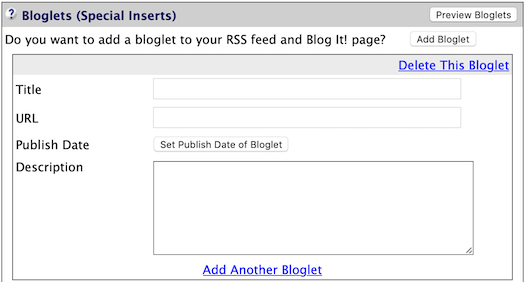
Enter the Title, URL (only if you have one), and Description of your bloglet (a maximum of 500 words).
Very Important
The URL box is for URLs to your own site. If you enter a URL to another site, it will be replaced with a URL to your site's Blog It! page.
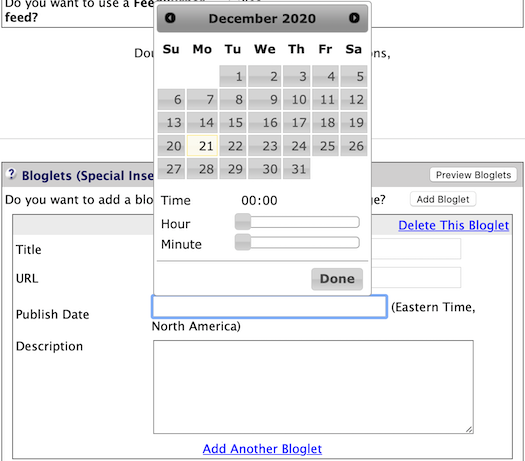
If you want to publish the bloglet immediately, skip the Publish Date option. If you want to schedule the bloglet for a future date and/or time, click on the Set Publish Date of Bloglet button, then click in the text box.
A calendar will appear. Select a date by clicking on the number for that day of the month. Click the right arrow to go to the next month.
Select a time by clicking on the gray Hour and Minute sliders and dragging them to the hour and minute you want (00:00 is midnight; hours use military time, so 19 is 7 pm, 23 is 11 pm).
Click a Preview Bloglets button to view what your Blog It! page will look like with the bloglet added.
Click on an RSS/Blog It! button to rebuild your RSS feed, the Blog It! page, and the What's New Box with the new bloglet, or to schedule the bloglet.
Editing Bloglets
You can edit any bloglet that's still in the current RSS rotation. Click the edit link and make your changes. This editing does not affect the RSS feed but does change the bloglet on the Blog It! page.
Click a Preview Bloglets button to view what your Blog It! page will look like with the bloglet added.
You can also change when you want a scheduled bloglet to be published. Click in the Publish Date text box and select a new date and/or time.
Click on an RSS/Blog It! button to rebuild the Blog It! page and your RSS feed with the new bloglet, or to schedule the bloglet.
Deleting Bloglets
Click on the Delete This Bloglet link to delete the current bloglet.
Or wait until each bloglet basically deletes itself, as far as your visitors are concerned. It gets pushed downward by newer web pages and bloglets until...
1) It doesn't show on your Blog It! page (according to how many items you set to be shown).
2) It falls to #51, so is no longer in your RSS file. At that time, anyone who set his/her RSS reader to read 50 items (which is unusually high) would not see it either.
Tips
-
Don't want a bloglet to disappear? Turn it into a web page. That way the page stays on your site forever.
-
If you want a bloglet to disappear from your Blog It! page and off the RSS file sooner than its normal expiration rotation, eliminate it by clicking on the delete link.
-
Finished with a bloglet? If it's not visible anymore (#51 in your RSS feed), SBI! automatically deletes it.